Search This Blog

Showing posts with label Linux Training Academy. Show all posts

Wednesday, January 18, 2023

Considering Linux Shell Scripting Mastery (again)

Once again, I am looking at Shell Scripting Class and its $299 price with drool forming in the corner of my mouth. I haven't posted about learning Linux in a few months on this blog.

Tuesday, August 16, 2022

START with the END in mind! - Revisited

This is the 3rd time that I have quoted Jason Cannon's email about "The biggest mistake shell scripters make" to whom I am giving every speck of credit to for his words (of course!) This email arrived in my Inbox on Tuesday, August 16, 2022, at 5:50 AM. Here's his email:


Hello,

From time to time one of my students will ask me to take a look at one of their shell scripts that they are having trouble with.

If you know anything about me at all, you know that I love three things. Linux, troubleshooting, and shell scripting. (Make that four things... teaching my love of Linux, troubleshooting and shell scripting!)

The offer to review a shell script is almost irresistible to me, so I'll say "Sure, I'll look at it."

Reviewing scripts gives me the chance to see many common mistakes. And the number one biggest mistake of all is:

Not defining exactly what the shell script is supposed to do!

What is supposed to happen when I run this shell script?

Why does this script exist?

Can I at least get a simple comment at the top of the script justifying its existence?!? (Um, no.)

By the way, I'm not judging or blaming. Again, this is a very common mistake... a mistake I used to make when I first started scripting, too. This is coming from a place of caring. I *want* people to write awesome shell scripts and I *love* helping them do so!

So, here's my first piece of advice to any (new) shell scripter:

START with the END in mind!

Why?

Well... sometimes people make assumptions about HOW to accomplish their larger goal. You may think you need to do A, B, C, D, E, F, G, and so on to get to Z, but in reality there may be a shortcut that takes you straight from A TO Z. (Shortcuts like bash builtins, predefined shell variables, Linux commands that you didn't even know existed, etc.)

It's the age-old case of not being able to see the forest for the trees and getting lost in the weeds. :-)

You could easily end up with this:

Image

When all you needed was this:

Image

(Shameless plug: If want to learn all the best scripting "shortcuts," check out my latest project-based shell scripting class here.)

Another trap you can fall into is biting off more than you can chew.  Once you have a goal in mind for your script, keep it focused on the essentials.

·         What MUST this script do?

·         If this script could only do one thing, what would that be?

·         What will get me 90% of the way to my goal with the least amount of effort?

Start there. Implement that first, then circle back around to the "nice-to-haves" or bigger goals for your script.

It's way easier to light a room in your house than it is to illuminate the entire neighborhood.

Image

Now you know where to start. In the next email, you'll learn how to write a shell script.

All the best,

Jason

P.S. Want to vastly improve your shell scripting skills quickly? Want help from me personally? Then click here.


Unsubscribe | 400 Locust Street, Suite 400. Des Moines, IA 50309


Thursday, March 24, 2022

A quick, but valuable, shell scripting lesson from Jason Cannon

I believe that there will be a day on which I dive into LInux. When I do, I think this post will be helpful.

From: Jason Cannon <support at linuxtrainingacademy dot com>
Sent: Thursday, March 24, 2022 7:00 AM
To: Me
Subject: Here's a quick, but valuable, shell scripting lesson.

 Hello!

In this email I'm going to teach you a quick, but valuable lesson on shell scripting.

First off, a shell script is simply a file that contains a series of Linux commands and shell statements. When a shell script is executed, it in turn executes the commands listed in the script. It starts at the top and executes the commands on each line, one line a time, until the end of the file.

By the way, the script's filename doesn't matter. You may be used to a different operating system where files have to have a specific file extension before they will be treated as an executable. (I'm talking about ".exe" files in Windows, for example.) That's not the case with Linux shell scripts.

By convention, shell scripts end in ".sh", but it is not a requirement. The following are all valid shell script names:

·         use-the-force.sh

·         do_or_do_not_there_is_no_try

·         ThisIsSomeRescue

What IS important is that your shell script has executable permissions. (We'll get to that in just a second.)

If you remember the advice from my previous email, it's best to start with the end in mind. So, the goal for this shell script is to collect and display some basic information about a Linux system.

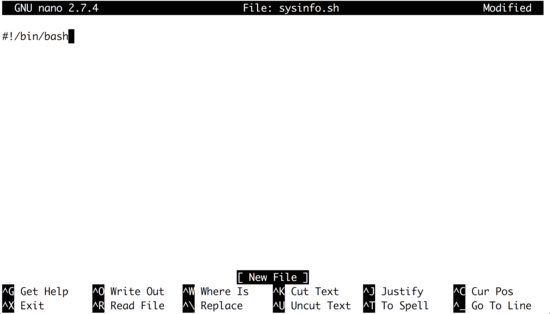
If you want to follow along, open up a terminal on a Linux system and create a new file named "sysinfo.sh". If you have a favorite text editor, use that. If you don't, I suggest that you use nano as it's simple to use and always displays help at the bottom of the screen.

Image

The very first line of every script you write should begin with "#!" followed by the path to an interpreter. We're going to write a bash shell script, so we'll use "#!/bin/bash". If you were going to write a Python script this line would be "#!/usr/bin/python"; a ruby script would be "#!/usr/bin/ruby" and so on.
Image

One very common task you'll perform in your shell scripts is displaying messages on the screen. To do this, use the echo command followed by whatever you want to display to the screen and enclose it in quotes. Like this:

 Image

Now save your changes and exit your editor. If you're using nano type Ctrl-X to exit, then type "Y" to save your changes, and finally press ENTER to write the changes to your script.

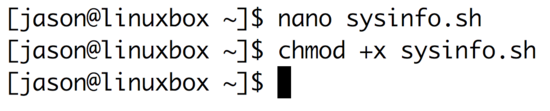
The next step is to add executable permissions to your script. You do this with the chmod command, which stands for "change mode". There are different ways to add executable permissions to a file, but the simplest is chmod +x FILE_NAME.
Image
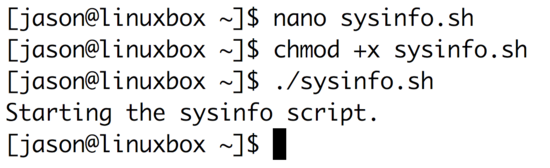
Now you're ready to execute your shell script. You do this by typing "./" followed by the script name. In this example, you would run "./sysinfo.sh":
Image

You'll see the text you supplied to the echo command displayed on your screen.

Now that you have a working shell script with the proper permissions, you can continue writing your script. Let's add some commands that will display information about the Linux system.

First, display the current date and time when this information was collected.

Image
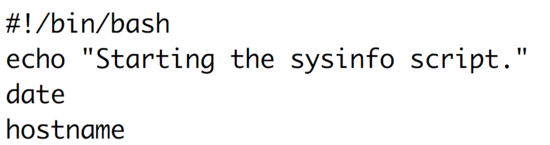
Next, display the hostname of the system.
Image

Next, display the kernel release followed by the architecture. You'll need to use the uname command to do this.
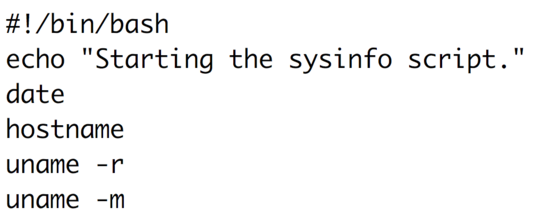
Image

Display the disk usage in a human readable format.
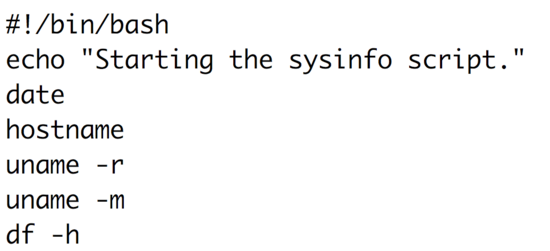
Image

Finally, end the script by letting the user know that it's done.
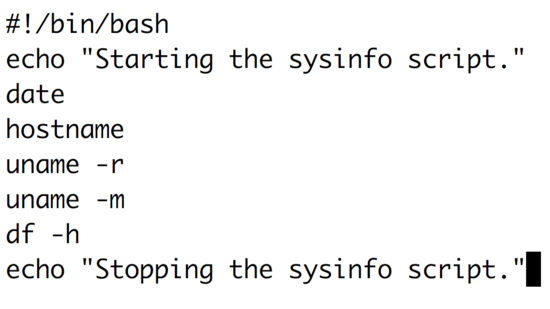
Image
It's time to see what your script does! Save your changes and execute your script.
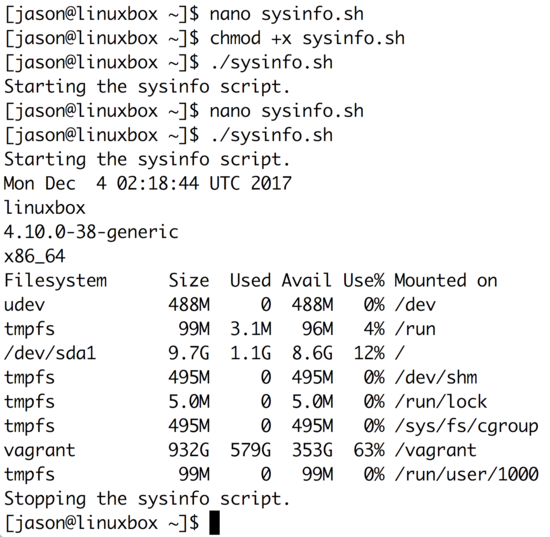
Image
Now you have a script that displays some basic information about the system you're on. You could easily expand this to show information about the CPUs, memory, networking configuration and more.

If you would like to write even more in-depth and practical scripts, reserve your seat in the upcoming shell scripting class. Registration closes a week from Sunday and class runs for 4 weeks. I'm limiting the number of students, so I can give individual attention to everyone in the class.

Hope to see you there!

Jason

P.S. The shell scripting class is currently being offered at a deeply discounted rate, so now is a great time to enroll. ;-)


Monday, November 29, 2021

Cyber Monday Sale


Email from Jason Cannon:


I've had a few people ask if I was going to have a Cyber Monday sale on my Linux courses. I didn't plan on having one, but why not?

Grab any of the Linux courses on this page for just $9.99.

All the best,

Jason


When I click the link above, I see the following:


Of those classes, I am interested in all but the Docker class, mainly because I've never heard of Docker so I don't know what it is. Each class is $9.99 so some quick math tells me that I can get 6 classes for $59.94. If I go ahead and get all 7 classes, it'd be $69.93. I have until this Friday to decide whether I want to invest in learning these topics.